Backups, imports and restore
Use a workspace backup to keep a copy of your recipes and configuration or move that content to another workspace. Use the cocktail JSON export instead when you only want to share or transfer selected recipes. Neither file is a full server backup.
Export a workspace backup
- Sign in as an Admin or Owner and open the workspace you want to back up.
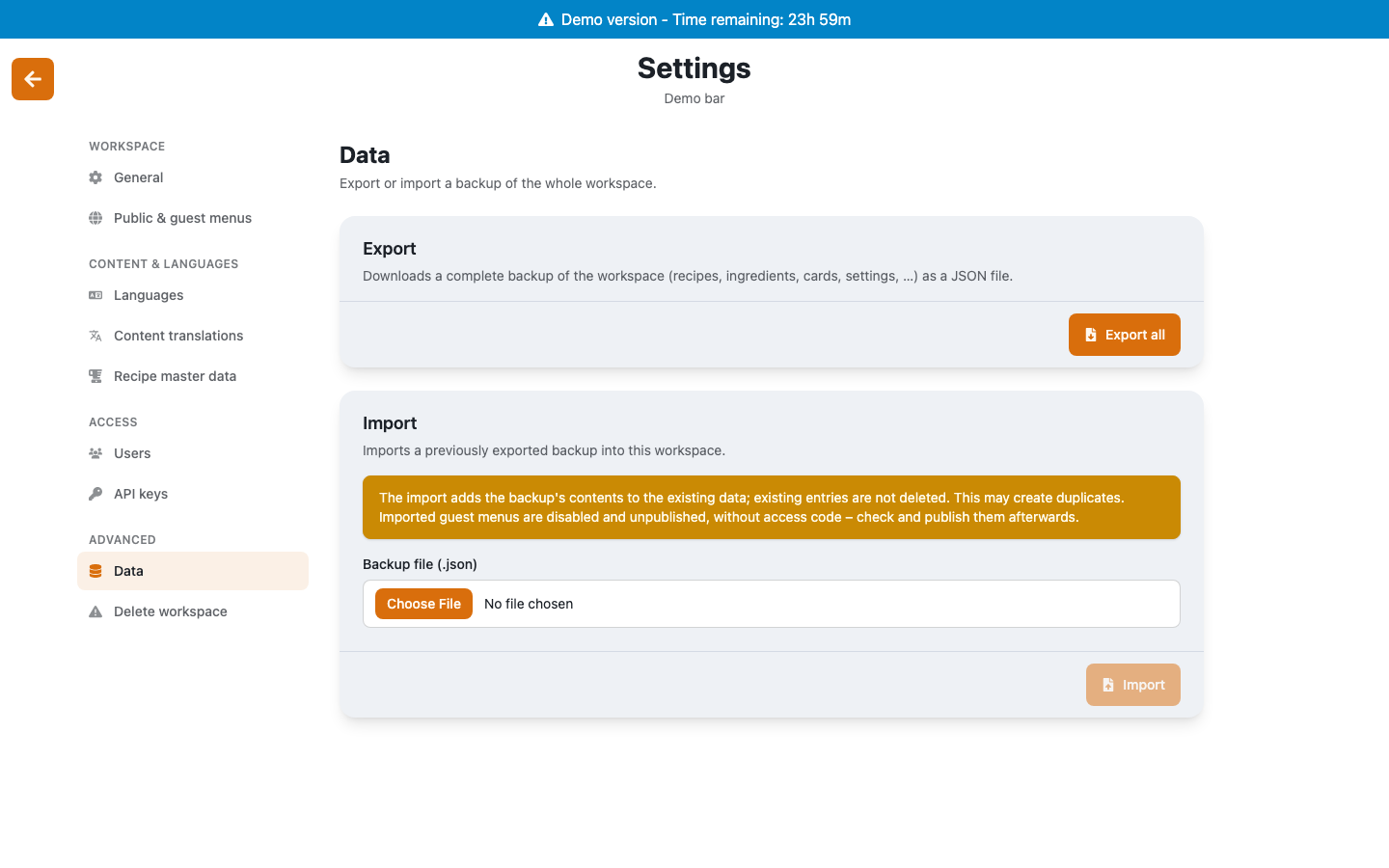
- Go to Manage → Settings → Data.
- Under Export, select Export all and keep the downloaded
.jsonfile. Label it with the workspace, date, and app release if you know it.
The file includes recipes and their dependencies, including embedded images, ingredients, garnishes, glasses, ice, units, and recipe step actions. It also includes cards, calculations, workspace settings, tags, content translations, monitor configuration and slides, and guest menus and their templates.
It does not contain the workspace record itself (including its public slug, logo and signage key), members, accounts, sessions, join codes, or API keys. It does not restore the queue, statistics, ratings or audit history. Guest menu access code credentials and preview tokens are excluded. The file still contains private recipes, prices, notes, images and potentially unpublished menu content. Store it with restricted access; don't commit it to a public repository or send it to a public file-conversion service.
Restore content into a workspace
There is no one-click rollback or in-place snapshot replacement. Import adds content to an existing destination. It doesn't clear existing rows and may create duplicates. It can also update shared configuration: imported workspace settings and tag definitions replace matching values, and imported monitor settings replace the background, duration and mirroring configuration for the same format. Imported monitor slides are appended to the destination's existing slides for that format instead of replacing them. Many records receive new IDs.
- Choose an existing destination workspace, preferably a fresh test workspace with as little content as possible. You need an Admin or Owner role there. If you must import into a populated workspace, first export its current contents and schedule the import outside service.
- In the destination go to Manage → Settings → Data. Under Import,
choose the workspace backup
.jsonand select Import. This is not where a selected-cocktail export is imported. - Wait for the result. The backup structure and internal references are checked before anything is written, and the accepted changes are applied in one transaction. An invalid backup, a broken reference or a write failure rolls back the import. Some individual settings, guest menus or custom menu templates may be skipped by security validation while the rest succeeds. Read the skipped-items warning before proceeding. Do not re-import the whole file just to retry skipped items: this can create additional copies.
- Check representative recipes, images, cards, calculations and settings. Review the rotation order, monitor slides and links because imported slides are appended, and update integrations that used old IDs. Imported guest menus start disabled, unpublished and not default, with no access code and a new preview token. Set access controls first, then review, publish and enable menus as appropriate. Recreate public links, credentials and memberships as needed.
Use a backup from a trusted source and test it with the destination app version. Backup uploads are limited to 100 MB at the app route; your host or reverse proxy may have a lower limit or a shorter timeout. If an upload times out, check the destination before retrying. If a large export cannot be imported, ask the operator about the request limits or use selected-recipe transfers for a smaller move. Do not arbitrarily split or edit the workspace JSON: references between records can break.
Transfer selected recipes instead
Under Manage → Cocktails, select the recipes and export as JSON. In the destination use the cocktails page's Import/Export → Import from JSON wizard. It lets you preview the file, map dependencies to existing records or create them, and resolve recipe name conflicts before writing. Review any overwrite: it changes a recipe that already exists in the destination. A PDF export is for printing, not importing.
Deletion is not a restore step
Manage → Settings → Danger zone → Delete workspace is available to the Owner and permanently removes the workspace and its data. The app blocks deletion while a workspace is marked as a template. Do not delete a workspace just to avoid duplicate imports: verify a separate test restore first, make a recovery plan for data the JSON file omits, and check which links and clients still depend on the original workspace. Import cannot resurrect the deleted workspace or its credentials.
For self-hosting, maintain and test a separate PostgreSQL backup and securely back up the configuration and secrets needed for instance recovery. A workspace JSON file is useful for content recovery, not a substitute for that process. For programmatic workspace exports and imports, see Workspace backup automation.