Bar service: orders, queue, and ratings
Use the bar view to look up recipes, assemble orders, and hand drinks off to the bartender preparing them. The Order panel is a draft on your device, the Queue is shared within the workspace, and checking off a finished drink creates a statistics entry.
Set up the bar view
- Sign in and open the workspace you are serving. A workspace User can view recipes, use the queue, record finished drinks, and add ratings. A Manager or higher can also delete ratings.
- Open View options, the eye button at the lower right. Choose a bartender card to browse its recipe groups, Cocktail search to look up a recipe, or Order to assemble an order. On a card, the magnifying glass or Shift + F opens cocktail search without switching cards.
- To show the queue and the recipe tracking buttons, open View options → Display → Recipe area and turn on Enable tracking. These are personal display settings: enabling tracking on one account does not change the view for other staff. The queue panel only appears when it has entries and you are online.
The bar view uses the recipes in your cocktail collection and the groups on your bartender cards. These are staff tools, not the guest menu.
Build an order and send it to the queue
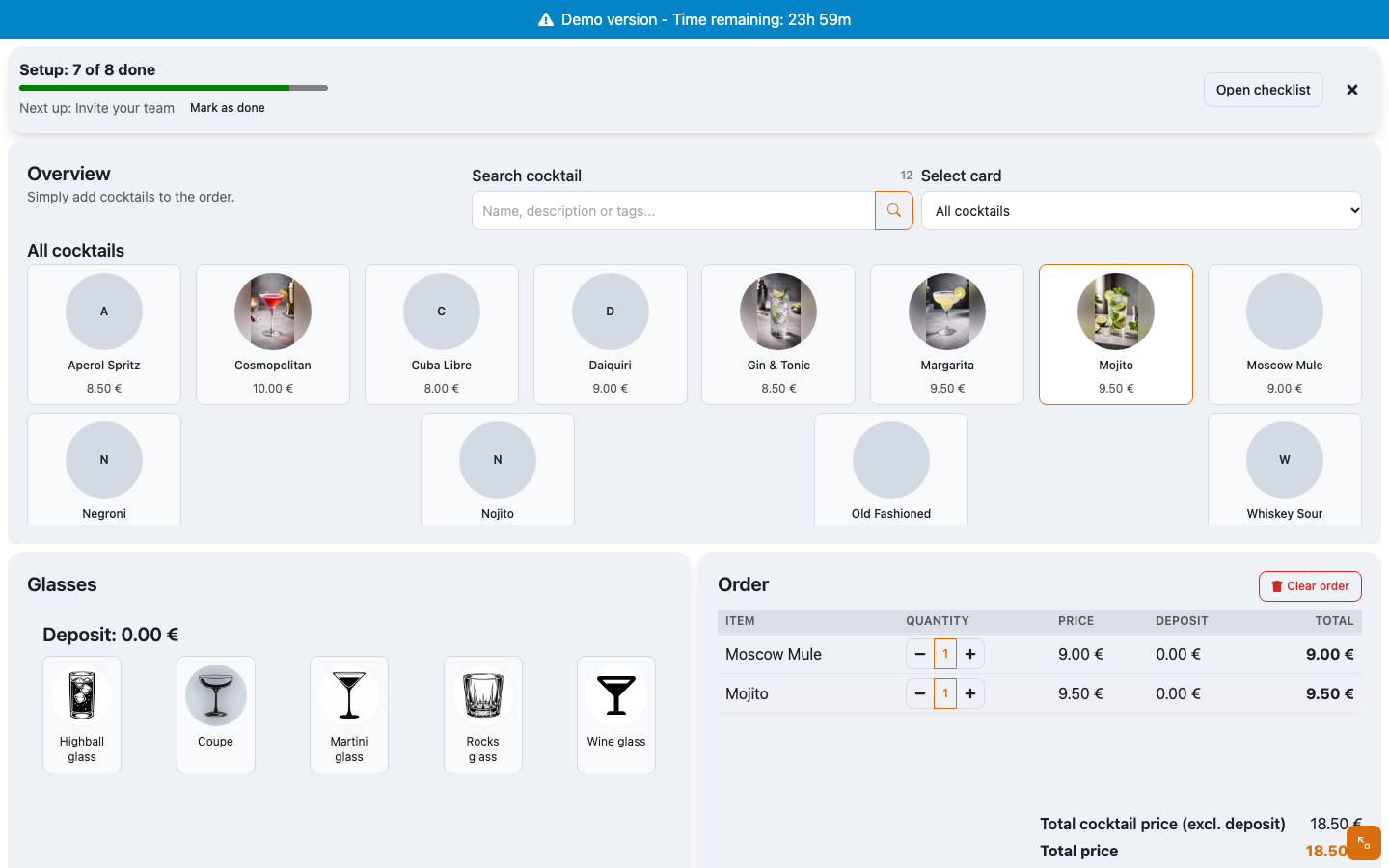
- In View options, select Order. In Overview, choose All cocktails or narrow the list with Select card. Search cocktail matches names, descriptions, and tags. When searching with a card selected, matching drinks outside that card can appear under More cocktails. Archived cocktails are excluded.
- Select a cocktail tile once per serving. In the Order table, use − or + to correct a quantity. Reducing it to zero removes the line. Clear order empties the draft and its note, not the shared queue.
- For each returned glass, select its type under Glasses. If the cocktail row has a Glass button, you can use it to add a return of that cocktail's glass type. Check the return count in the order table and use − to undo a return.
- Check Total price: cocktail prices plus new deposits, minus returned deposits. A cocktail without a saved price contributes zero to the cocktail subtotal; new deposits come from its assigned glass. If the figures look wrong, check the recipe price and the glass and its deposit. Select card organizes the tiles; it does not apply card-specific prices to this draft.
- Optionally fill in Note for all cocktails. It goes on every queued serving in this draft. If two servings need different instructions, send them separately or use with note from a recipe.
- Select Add to queue and verify the drink quantities and notes in the shared queue. Only cocktails are sent: a draft containing only returned glasses cannot be submitted. Payment, refunds, and receipts are not recorded by this screen.
A submission can add up to 50 servings of the same cocktail at once, and a queue note can be up to 500 characters. Split larger quantities into separate submissions. The app sends each cocktail line separately, so this is not an all-or-nothing transaction: a failed line does not roll back lines that already succeeded. The app continues with the remaining lines, and it clears the draft and note after the loop even if a line failed. If you see an error, check the Queue and In progress sections before retrying, because some lines may already have arrived. Re-enter only the missing servings. An unsent draft is not saved for later; finish entering it before switching views or reloading.
Add a drink directly from its recipe
- List adds one serving to the queue without a note.
- with note opens a dialog with Amount and a note field. Enter a quantity from 1 to 50 and choose Add. This is useful for preparation requests such as “no ice”; all servings added together get the same note.
- Done records one finished drink without first adding it to the queue. If there is a matching queued drink, this action can also consume it. If there are noted variants in the queue, the app asks which one you made. Choose the appropriate row, or choose Without affecting the queue if the drink you made was not one of the queued servings.
Work through the shared queue
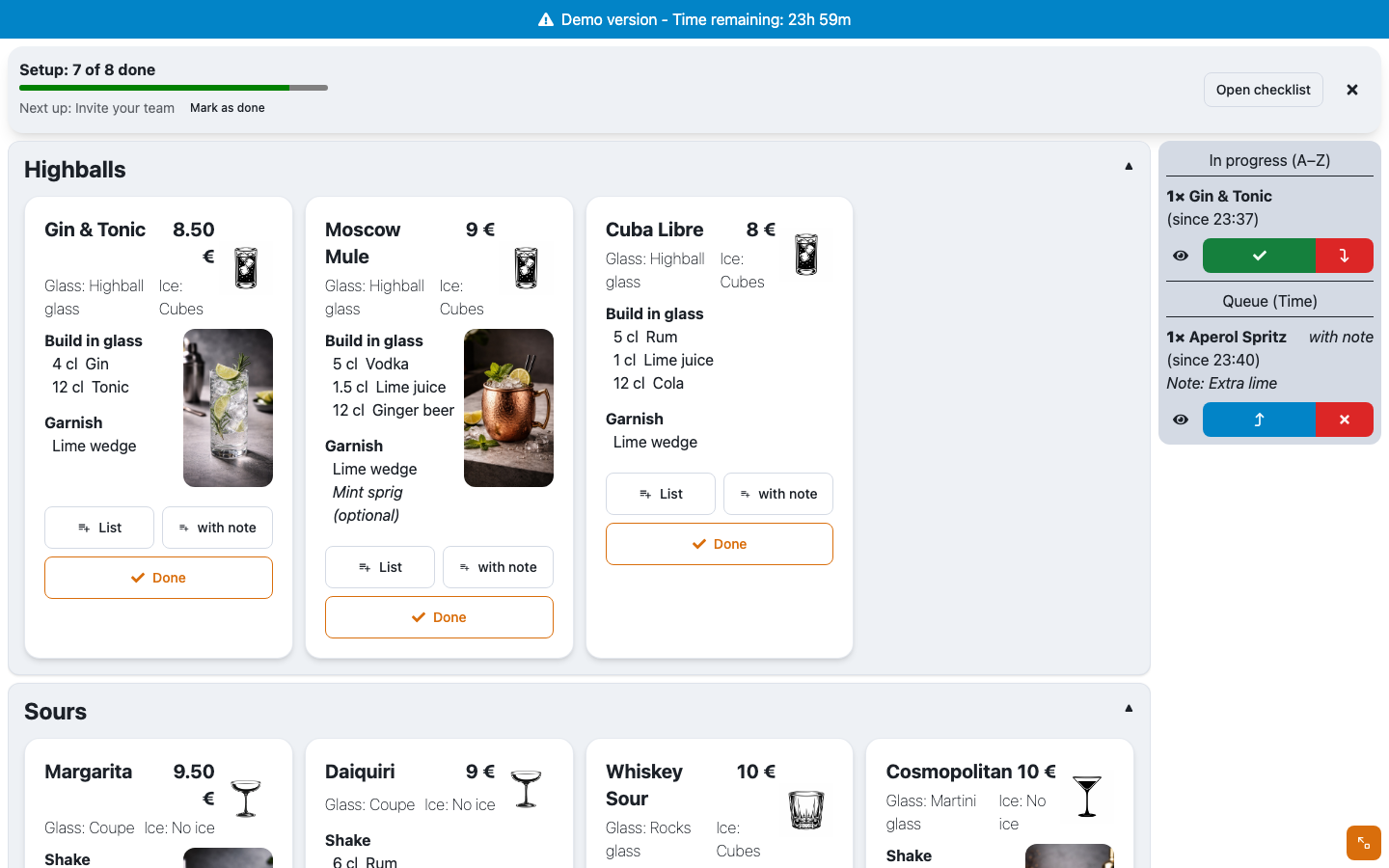
- In Queue, use the eye icon to open the recipe and see the note and requested quantity. The row also shows how long it has been waiting by displaying the time of its oldest entry.
- Select the upward-turning arrow to move one serving to In progress. Use the downward-turning arrow in In progress to put one back in the waiting queue. Starting or putting back a drink does not record a preparation.
- When the drink is ready, use the green checkmark. This records one preparation and removes one matching serving. A row marked
3×is still three separate servings; check off each one you actually made. If you want to check off drinks directly from Queue, enable Show quick check-off in View options → Display → Queue. - To cancel a waiting serving, use the red ×. This removes one matching serving without counting it as made. For a serving that is already in progress, put it back before cancelling. Do not use Done to cancel a drink.
In View options → Display → Queue → Grouping, choose Cocktail name (A–Z) to group waiting servings by cocktail and note. None (chronological) lists the oldest first and can still combine adjacent identical servings. In progress is grouped alphabetically regardless of that setting. These are views of the same shared list, not separate tickets for each customer or staff member. Completion and cancellation match the oldest serving with the same cocktail and note, so a matching serving can disappear from the other section.
Queue actions do not create entries in a recipe's History. Completing a drink creates a statistics booking, not a recipe-history entry.
If you need to scale the recipe while making several servings, use Adjust amount in the recipe details and enter a percentage, such as 200 for a double batch. This changes the displayed recipe amounts, not the queue quantity or the number of bookings.
If a row changes or disappears while you are looking at it, another bartender may have acted on it. Check the updated list before repeating an action. Done is a booking action, not a status toggle: repeating it can create an extra log entry. A manager can remove an incorrect entry in Booking logs, but that does not put a drink back into the queue.
View or add cocktail ratings
- Open the cocktail's detail view from a card, search, or the queue. View options → Display → Recipe area → Show rating also shows ratings on recipe cards.
- In the ratings section, choose Add rating, select one to five stars, and optionally enter a name and comment. The form starts with three stars selected, so check the value before choosing Add.
- Use the information icon next to an existing rating summary to see the average, the number of ratings, and the individual entries. The search field matches names and comments. A manager can use the trash icon beside an entry and confirm its deletion.
A rating is recipe feedback; adding it does not complete a queue item or create a booking. If you see Failed to load ratings, check the connection and use the refresh button in the ratings section. Ratings and the queue need a connection. If the application shows an offline banner, use cached recipes as a reference and track service separately until it reconnects.