Guest menus
A guest menu is the menu you share by link or QR code, show on a monitor, or print. A bartender card is the list staff use during service. A guest menu can follow a bartender card, but it has its own design, prices, schedule, and publishing controls. Guests don't need a workspace account to open a published web menu.
You need the Manager role or higher to open the menu builder and manage guest menus. An Admin can set a readable address under Settings → Public & guest menus → Public address. Links use the workspace ID if no readable address has been set.
Create your first guest menu
- Open Manage → Menus & guests → Guest menus and select New guest menu (+).
- Enter a Name, such as
Evening menu, and choose a template thumbnail. Classic has serif headings and dotted price leaders; Modern uses large images; Minimal keeps the layout simple; Speakeasy uses dark colors and gold accents. You can change templates later. - Choose a Source:
- Today's active bartender card follows the same bar-day selection as the bartender view's default. It doesn't follow a card a staff member picked on their device.
- Fixed bartender card points to one card from your workspace. Select the card before creating the menu. Edits to that card can change what guests see without republishing the guest menu.
- No bartender card lets you build sections from your own cocktail selections or from rules. Sections that need a bartender card stay empty.
- Select Create. The builder opens a draft. A card source starts you with a section for all of the card's groups; with no card, add your own Section under Structure.
The Name identifies the menu in management. To change the title printed or displayed in the menu header, select the Header block and edit Title in Properties.
Find your way around the builder
On desktop, edit from the tabs on the left, check the preview in the center, and use Properties or Hints on the right. On narrower screens, switch between Edit, Preview, Properties, and Hints. Select a block in Structure, or use Click selects in the preview, to open its properties.
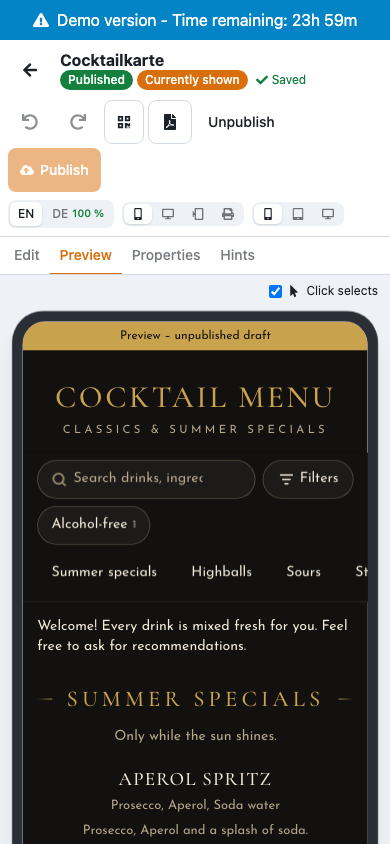
Use the top bar to switch between web, landscape monitor, portrait monitor, and print previews. The web preview has phone, tablet, and desktop sizes. These buttons change which output you are viewing; they do not enable that output.
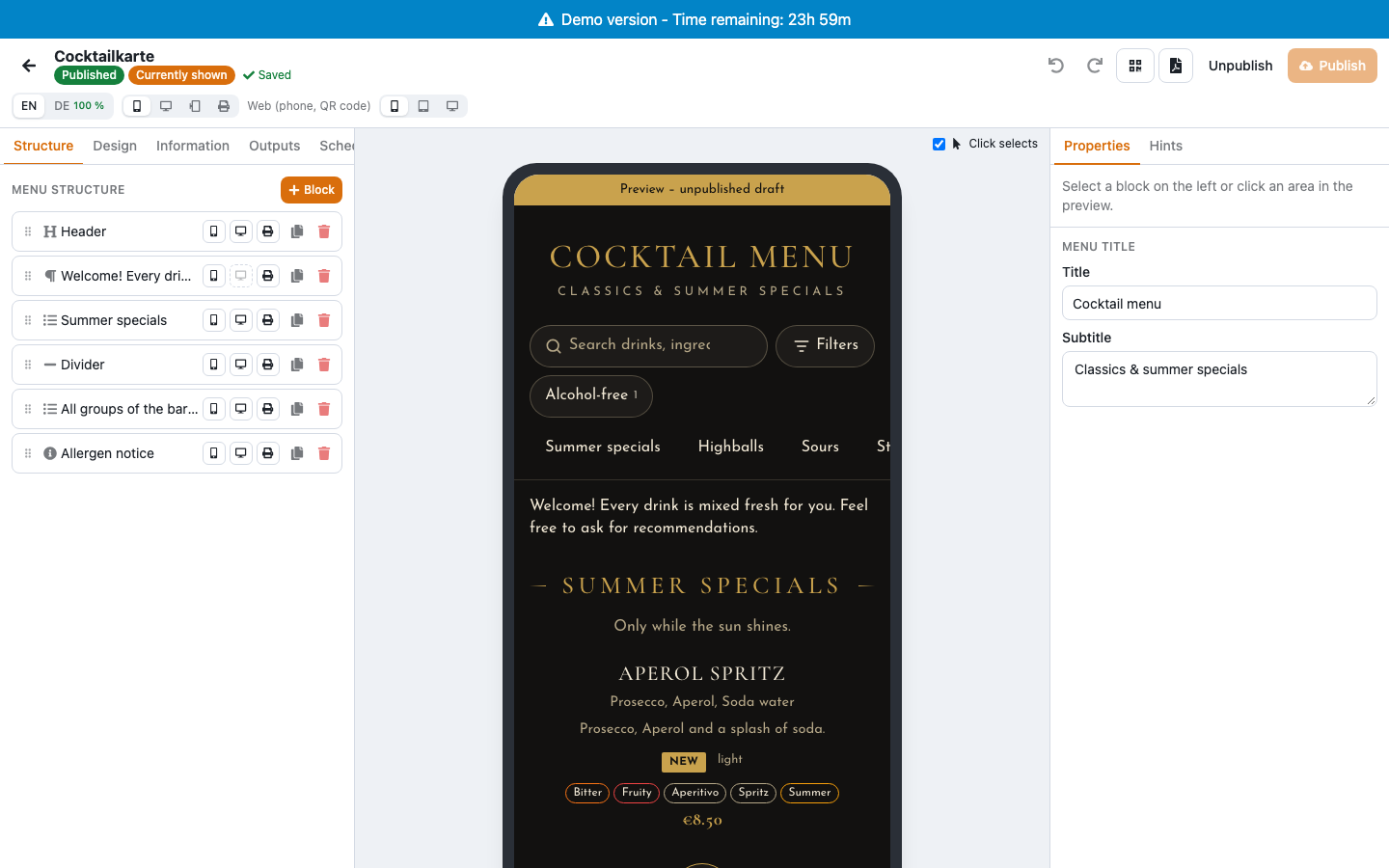
The builder autosaves the draft. Wait for Saved before testing on another device or printing. Use Undo and Redo for draft edits. Changes under Schedule & source are separate: use that tab's Save button to apply them immediately, without publishing. Access-code controls save separately as well.
Build sections and set prices
In Structure, select + Block. Drag blocks by their handles to change the order. Use the output icons to show or hide each block on web, monitor, or print. Select a block to edit it in Properties.
| Block | What to configure |
|---|---|
| Header | Set the title and subtitle guests see and choose whether to show them and the logo. Change the logo under Design. |
| Section | Choose the cocktail source, then set the heading, description, section information, and item overrides as needed. |
| Text | Enter free text. Markdown supports formatting such as emphasis, headings, lists, and links. |
| Image | Upload an image and add alt text. |
| Divider | Add a visual break. It has no extra settings. |
| Notice | Choose an allergen notice, deposit notice, or custom notice. Write the text for a custom notice; for a preset, empty text uses the default. |
Choose what goes into each section
| Section source | What it shows |
|---|---|
| All groups of the bartender card | Makes one section per group, with the card's group names and order. Edits to the card flow through to the menu. |
| One group of the bartender card | Shows one selected group. Leave Heading empty to use that group's name. If the source is the active card, the group only shows while its own card is selected by the bar-day rules. Another card's group with the same name is not a substitute. |
| Own selection | Search for existing cocktails, add them, and drag them into the order you want. |
| Rule (tags/ingredients) | Select at least one tag or ingredient. Any matches at least one condition; All requires every selected condition. Choose Name or Price for rule sorting. Matching non-archived cocktails can change as you edit recipes. |
The web output can sort by Name or Price even if you have arranged the drinks manually. Use Outputs → Web (QR code) → Sort → As in the menu to keep the source order for available drinks.
Customize individual drinks
In a section's Properties, expand a drink under Cocktails in this section. You can hide the item in that section, give it a Recommendation, New, or Signature highlight, set a custom description, or change its information fields.
When Price is shown, the guest menu uses this precedence:
- The guest menu item's Custom price, if entered.
- Its bartender card Special price, if the source supplies one.
- The bartender card Group price, if set.
- The price on the cocktail recipe.
Choose Hide price to show no price, or clear the custom price to use the fallback.
Entering 0 means a price of zero. These overrides don't update the bartender card or
recipe. Manual and rule sections can also pick up card prices when their cocktails are
on the selected source card. Guest menus format prices using the workspace currency
and the guest menu language.
Design each output
Templates and appearance
Select the output in the top bar, then open Design to choose its template. Monitor compact is designed for a dense screen layout; Print elegant is designed for a printed menu with footnotes. Apply to all suitable outputs copies the template to the outputs it supports. Use the template's colors & fonts is a separate action. Existing per-output custom code can still apply after you switch templates.
Set the theme colors, heading and body fonts, corner radius, spacing, logo, and background image in Design. If you do not upload a logo, the header can use the workspace image. Check the contrast indicators and preview each output you intend to use.
Information and languages
In Information, set what guests can see: price, ingredients, amounts, flavour tags, highlights, image, description, history, glass, garnish, rating, alcohol, allergens, and additives. Start at Base, then set exceptions by output, by section under Properties, or by individual cocktail. Unset values inherit in that order: Base → output → section → cocktail.
- Off hides the field. In the list shows it without opening a drink.
- Detail only shows it in the web detail view; it is hidden on monitor and print.
- Expandable gives a web reader a way to reveal the field. Monitor and print show it directly instead.
- Amounts are off by default. Leave them off unless guests should see recipe measurements. Ingredients marked hidden on guest menus remain hidden.
- Set the display styles for alcohol, allergens, and additives as needed. Check your recipes and ingredient data for completeness before relying on those fields or the Without allergen filter. The filter excludes drinks with incomplete allergen data; it is not an allergen safety guarantee.
Configure the workspace's content languages in Settings, then use Schedule & source → Languages to restrict this menu to selected languages. An empty selection uses all workspace content languages; the source language is always available. Select a language in the builder's top bar to edit localized text and check the guest view. Missing text falls back to the source language. Changing the top bar language does not translate the source recipes.
Web, monitor, and print settings
| Under Outputs | What to set |
|---|---|
| Web (QR code) | Enable web access. Choose the layout and sort order. Enable search and, optionally, ingredient matching. “On request” in search can surface non-archived drinks outside the menu: leave it off if guests should only discover menu items. Enable the allergen and alcohol filters as needed. Use automatic tag categories marked as guest filters, choose categories explicitly, or add named custom filters from tags. |
| Monitor | Enable the monitor output. Choose a layout, column count or automatic columns, time per page, QR display, and source, fixed, or rotating languages. Check both orientations you plan to use. Set up a guest-menu slide in External monitor to put it on a screen. |
| Enable and preview the print output. Choose its layout, default paper size, language, and whether to include a QR code. |
Custom filters match any of their selected tags on the cocktail or its ingredients. You can use internal tags as criteria: guests see the filter label, not the internal tag names. Web Tiles and Gallery are touch-oriented layouts; monitor and print use a static grid instead.
Optional: customize template code
Use Code if you need more than the built-in design controls. Pick an output, then edit its Liquid template slots (header, section heading, item, web detail, footer) or CSS. Theme CSS applies across outputs. Variables & filters inserts snippets, and Reset to template removes a slot override. Scripts, event handlers, and unsafe links are not supported, and external CSS imports and resource URLs can be removed by the renderer. Check Hints for errors before publishing.
Use Save as template to store and assign a workspace template for the selected output. Update template edits the shared template: check other menus that use it, including published ones, before changing it. Export as JSON and Import JSON in Code work with the builder document, not the full menu record. The JSON keeps references to workspace records; it doesn't migrate recipes, schedule, access settings, or the published state. For workspace transfer, see Backups. After importing a workspace backup, review restored guest menus before enabling and publishing them: backup restores don't carry over access codes or keep menus public.
Schedule which menu guests see
Open Schedule & source and set the menu's Active switch, dates, weekdays, and optional times. Select Save in this tab. You can also change Active and Default menu directly on the overview using the toggle and star.
| Field | Behavior |
|---|---|
| Valid from, Valid until | Optional, inclusive dates. Leave either blank for no limit on that side. |
| Weekdays | Select the days to include. No selection means every day. |
| From, To | Times are in the workspace time zone. The start is included and the end is excluded. With one bound blank, only the other is enforced. Equal times mean all day. |
| Default menu | The fallback for the bar link if no published, enabled menu matches the schedule. Only one menu can be marked as default. It still has to be published and enabled to serve as the fallback. |
| When the menu is not valid | Controls the menu-specific link outside the schedule: show a notice with a link to the current menu (if one is available), show a notice with the published content, or redirect to another current menu when one is available. Disabling the menu prevents the notice from showing that menu's content. An unpublished menu cannot be opened this way. |
Without a time window, the dates and weekdays follow the workspace bar day.
With a time window, they follow the calendar day on which the window starts.
For example, set Friday and 18:00–02:00 for a menu that should run from
Friday evening until 02:00 Saturday. It stops matching at 02:00, not at midnight.
The workspace bar link picks the topmost published, enabled menu whose schedule matches. Drag menus on the overview to reorder them. The default isn't automatically last: if its schedule matches, it competes like any other menu. For an all-day house menu and a Friday evening special, put the special above the house menu. Review Schedule for the next 14 days for overlaps and the winner of each slot. Currently shown identifies the selected menu; Active is only the enabled switch.
Preview, publish, and share
Check the draft
- In the builder, wait for Saved and check Hints. An incomplete block can be left out of the saved draft. For instance, finish an image block by uploading its image, or add at least one condition to a rule section.
- Preview the outputs you will use. Review any empty sections, missing translations or guest information, pricing, and template errors.
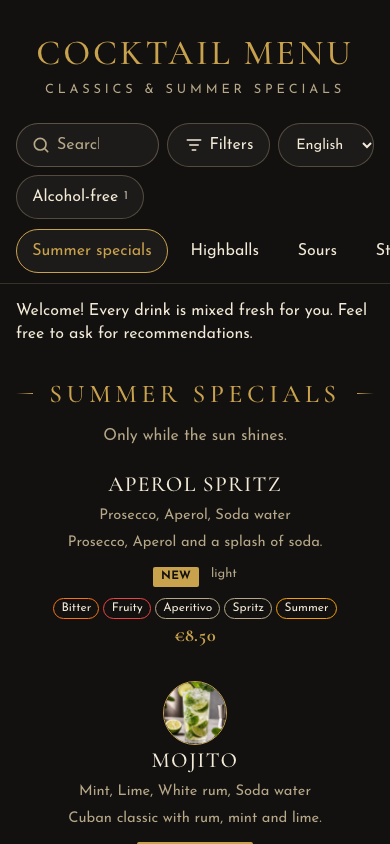
- Select Test on your phone and scan the QR code or use Open. This opens the saved web draft, not the public version, and ignores publication and scheduling. The web output must be enabled.
The phone-test link contains a secret preview key. Anyone with it can open the draft, including for a PIN-protected menu. Keep it out of public screenshots, messages, and printed materials. If it was shared too widely, use Renew preview link to invalidate the old link and QR code.
Publish and take a menu offline
Select Publish in the top bar. The app saves the draft, checks the templates and test-renders enabled outputs before copying the draft to the published version. Unpublished changes means guests still see the previously published design until you publish again. The published design does not freeze its source data: recipe and card edits, shared template changes, and saved schedule, source, or access settings can affect what guests see without publishing a new draft.
To take a published menu out of the bar-link rotation, turn Active off. Its specific link can still show a notice or redirect. To remove the published version entirely, use Unpublish in the builder and confirm; the draft stays available to edit. Duplicate on the overview copies the draft and schedule into a separate menu that is disabled, unpublished, and not the default. Check its access settings before publishing: it does not inherit the original access code.
Pick the right public link or QR code
| Share this | Where to get it | What guests open |
|---|---|---|
| Always the current menu | On the overview, use Copy link or Download QR code in the link panel. The QR download is available once a menu exists. | /m/my-bar follows the schedule, order, and default selection. Use this for reusable table signs. |
| Exactly this menu | In a menu's More actions, use Copy link to this menu, QR code of this menu (SVG), or Open. | /m/my-bar/evening-menu points to that guest menu. Its own schedule and invalid-menu behavior still apply; it does not need to be top of the list. |
| Preview link (draft) | Use Test on your phone inside the builder. | The saved draft. Share only with reviewers, not guests. |
The URL slug in Schedule & source is the last segment of the menu-specific URL. It starts from the name; you can change it to a unique value in your workspace using lowercase letters, digits, and single separating hyphens (up to 64 characters). Choose the workspace Public address and menu slug before printing QR codes. If a slug-based address changes, update the corresponding links and replace printed QR codes. A link that used the workspace ID still works after a workspace public address is set, provided its menu slug, if any, has not changed.
Test the public link from a phone or private browser window before sharing it. Check that the workspace is reachable from a guest device and that the QR opens the expected domain and menu. If the QR uses the wrong domain, ask the instance administrator to check the configured public URL.
Require an access code
Use Schedule & source → Access, or Set access code … in the menu's overview actions. Set a code of 4–12 letters or digits, with no spaces or symbols. Codes are case-insensitive; using only digits gives guests a numeric keypad. Enable protection to require the code on the web menu. Staff can't retrieve the saved code; if it is lost, set a new one. Changing or removing the code invalidates earlier guest unlocks. The configured signage player can still display protected menus.
For a limited audience, QR code with code (SVG) creates a menu-specific QR that opens the menu without asking the guest to type the code. You must enter the current code to generate it. Treat the QR like the code itself: anyone who receives it can use it. If the code changes, replace that QR. Regular public QR codes don't contain the code. Hide from search engines requests that engines not index the menu; it is not a substitute for access protection.
Print a menu or a table tent
- Check Outputs → Print, switch to the print preview, and wait for Saved.
- Select PDF / Print (PDF icon) in the builder. This button prints the saved draft, even if another version is published. It does not publish the menu.
- If the PDF service is available, choose A4, A5, or DL, a language, and whether to print the QR code. Choose Open print view to check the layout or Create PDF to download it. The printed menu's QR goes to the public menu-specific link, not the draft.
- To print only a branded QR sign, use Table tent in the same dialog. Choose Always the current menu or Exactly this menu, set A6 or A5, and select Download table tent.
If the PDF service is unavailable, the button opens the browser print view instead of the export dialog. Use your browser's Print command to print or save a PDF. For a table sign without the server PDF service, download the appropriate SVG QR from the overview and place it in a document you can print.
Troubleshoot a guest menu
| Symptom | What to check |
|---|---|
| The draft looks right, but guests see the old version. | Check the builder's status and publish the saved draft. Make sure guests opened the intended menu, not the one selected by the bar link. |
| The bar link shows no menu or the wrong menu. | Check Published, Active, schedule, priority, and default. Enable Web (QR code) on the selected menu and publish that change. The scheduler can select a menu whose web output is disabled; the bar link then has no web menu to render. |
| A section or drink is missing. | Check that the block was completed and is visible on this output. For a card section, check the source card and group. For a rule, check its tags, ingredients, and Any/All match. Check that the recipe isn't archived and the item isn't hidden in Properties. |
| Archiving a card did not take its menu offline. | Fixed bartender card can still read a card after it is archived. Change the menu source, disable the menu, or unpublish it. |
| A price or detail is wrong. | Check the item override and the inherited field settings. Detail only does not appear on monitor or print. If the price is visible, trace the guest override, card special price, group price, and recipe price in that order. |
| A guest can't unlock a protected menu. | Verify the specific menu's current code and try again after the wait shown if access attempts were limited. A QR with an older code needs replacing; a regular QR remains usable with the new code. |
| Publishing fails. | Open Hints, fix the reported template or CSS errors in the affected output, and publish again. If another edit arrived while publishing, check the latest draft before retrying. |