Statistics & booking logs
Open the gear in the bar view, then Insights → Statistics. The Advanced statistics page counts preparations recorded with Done or the queue checkmark. Adding an order to the queue, starting a drink, cancelling it, or adding a rating does not count. A workspace User or higher can view statistics and logs and create, update or delete saved analysis sets. Removing an individual booking requires Manager or higher.
Choose the time range
- Open the calendar control in the header. Choose Today, Yesterday, This week, Last week, This month, Last month, or This year (YTD). The header range initially shows This week.
- For another range, choose Custom… and enter From and To dates. They apply as you select them and cover whole reporting days. To inspect one day, use the same date in both fields.
- On Overview, choose Period if you want these header dates. The other overview tabs, Today, Week, Month, and All time, have their own windows. For example, selecting Yesterday in the calendar while leaving Today selected in the overview still shows today's summary.
Check Day start in the calendar if a late-night drink appears under the previous day. With a day start of 06:00, for example, a preparation at 02:00 on Saturday belongs to Friday's service. Check the actual Selected range in the calendar before comparing shifts. If a custom date resolves to the preceding reporting day or you are viewing from a different time zone, verify the timestamps in Booking logs before relying on the totals.
Find top drinks and busy hours
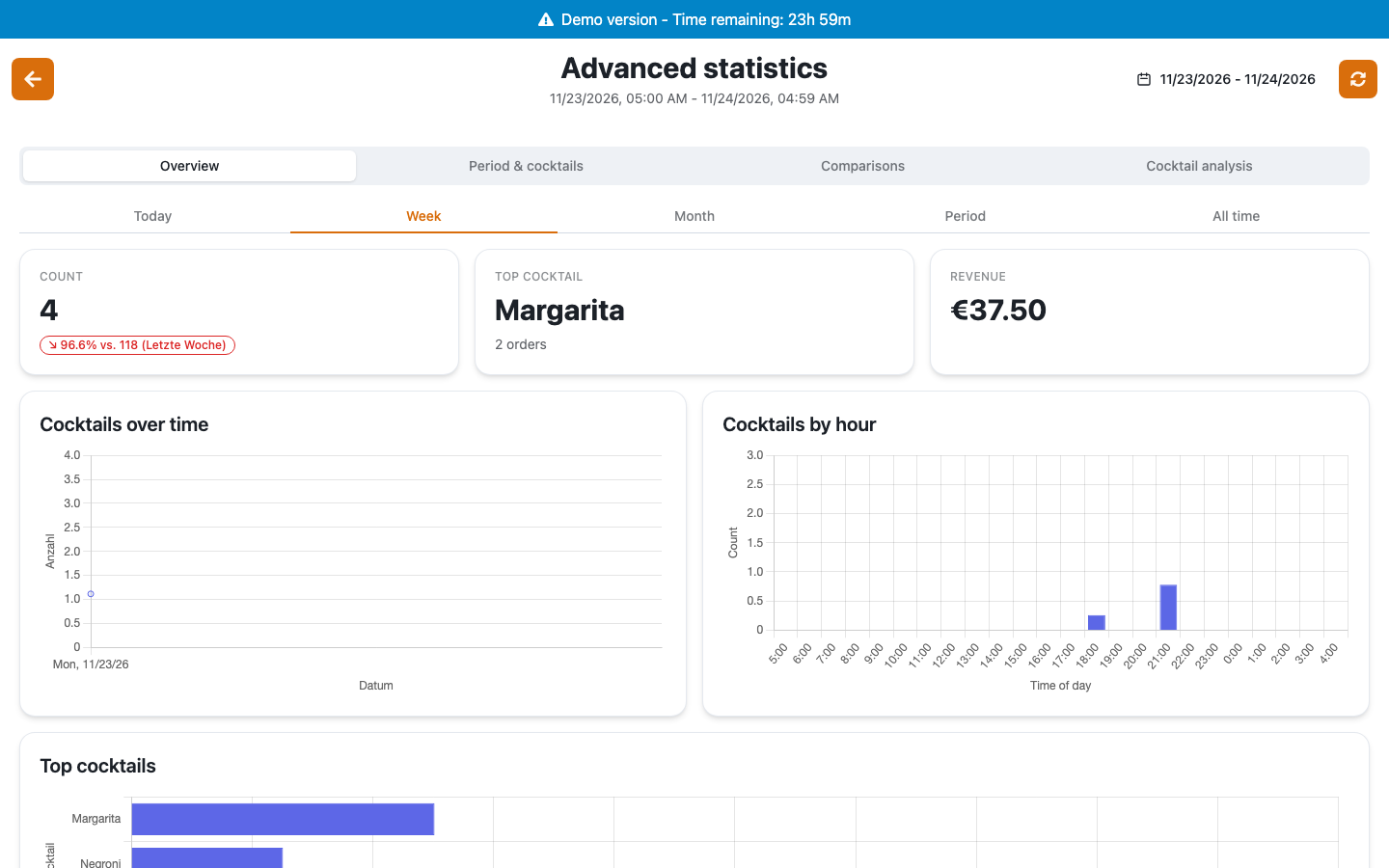
- Overview shows count, top cocktail, estimated revenue, a timeline, a distribution by hour, and a top cocktails chart for the selected overview window. Use it to answer questions such as “What was our busiest hour this week?”
- Period & cocktails gives you an interactive ranking and a Grouped view of the selected header range. Filter the ranking by cocktail name and click Rank, Name, Count, or Share to sort; click the same heading again to reverse the sort. The eye beside a cocktail hides it from the grouped chart, not from the booking logs. Switch between Hours and Days when the range allows it; in Days, turn on Show all days to include days without a booking in the chart.
- Select a cocktail row for details: orders, change from the previous period, average per active hour, rank, and distributions over time, by hour, and by weekday. The rank is for the selected reporting period, not an all-time rating.
Revenue is an estimate based on recorded preparations and the current cocktail prices. It does not reflect card item special prices, card group prices, glass deposits, refunds or what guests actually paid. A missing cocktail price contributes zero. For recipe prices and planning, see Bartender cards and quantity calculations.
Compare tags or ingredients
- Open Comparisons and choose Tags or Ingredients. The Tags list contains every tag used by a workspace recipe, including tags on archived recipes; the Ingredients list contains every ingredient record in the workspace, even one that no recipe uses. Each row shows its count for the selected period, and an item without a matching booking has a count of
0. Select one or more items in the list. - Choose AND to match cocktails containing all selected tags or ingredients, or OR to match cocktails containing any of them. For example, Ingredients → lime + mint → AND finds booked drinks whose recipes use both; OR includes drinks with either one.
- In Results in period, check the cocktail and order counts, the share of orders, and the matching drinks. A recipe can belong to several tags or ingredient groups, so don't add up separate group counts and treat the result as a workspace-wide total.
- Check Ingredients (aggregated) for estimated quantities used across the matching recipes, not just the ingredient you selected. The app multiplies recipe amounts by booking counts. The Output unit selector uses conversions from the ingredient's setup. Cost uses the configured ingredient purchase price and unit conversions; missing prices or conversions can make estimates low or incomplete. Review inventory and units before relying on those numbers. These figures do not measure stock on hand or actual pours.
Compare specific cocktails and reuse sets
For a named group of drinks rather than a tag or ingredient rule, open Cocktail analysis. Search or scroll in Select cocktails, select the drinks you want, and review the comparison table and charts. The comparison range is the equally long period immediately before your chosen range. Use the sortable table to compare orders, rank, estimated revenue, and change. Show order times on a cocktail row opens the individual bookings for the selected period; the search field there accepts a date, staff name, or card name.
To reuse a selection:
- Select tags or ingredients in Comparisons and choose Save set, or select cocktails in Cocktail analysis and choose Save cocktail set. Enter a name and confirm.
- Select a row under Saved sets to load it. Select the same row again to clear it. In Comparisons, deselect the set before switching manually between Tags and Ingredients. Sets save the selection and, for comparisons, its AND/OR rule, not the date range or a snapshot of the results.
- With a set selected, make changes and choose Update to overwrite it, Reset to return to the saved selection, or Save as new set to keep both versions. Keep at least one item selected to see these actions. Use the trash icon on the saved set and confirm to delete the set without deleting any bookings.
Check or correct a booking
- Go back to Manage → Insights → Booking logs. The Order logs table starts on Today and shows individual entries with Timestamp, Cocktail, Cocktail card, and Added by. A dash means there was no card or user attached to the entry; a missing card does not by itself mean the booking failed.
- Choose the date range, then use the search field to find a cocktail, card, or staff member by name. The default order is newest first. Column sorting applies to the displayed page; use Previous and Next to check other pages.
- For an accidental or duplicate booking, a manager can click the trash icon on the exact row. Check the timestamp and staff member first: deletion is immediate and does not restore a queue item. Reload the statistics view to check the corrected totals.
If charts or rankings are empty, check the workspace, the header dates, which overview subtab you are viewing, and whether drinks were actually marked Done in bar service. In Comparisons, try a wider period or switch from AND to OR if no cocktail matches all selected items. If the page reports a loading error, reconnect and reload before interpreting empty or stale data as zero activity.